

The Advanced tab contains additional settings that control how a webcast behaves inside the event — visibility, access overrides, launch behavior, viewer limits, and more.
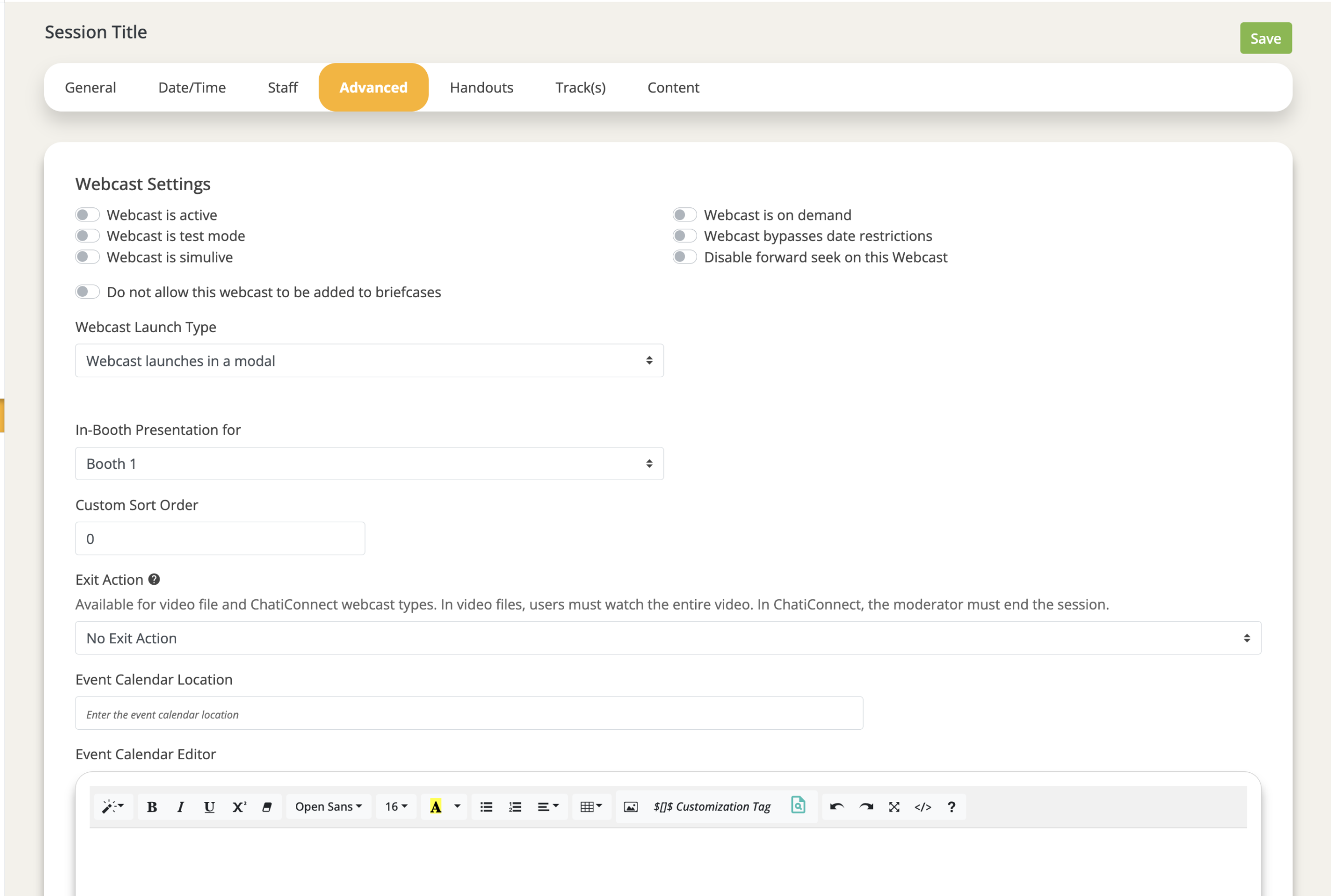
Webcast is Active
This toggle must be enabled for the webcast to appear anywhere in the event for attendees.
When inactive, the webcast is hidden from all attendee-facing views — theater components, search, briefcases, etc. Admins and assigned webcast staff can still see and access it.
Common issue: If a webcast is not showing up for attendees in the event, check this toggle first.
On Demand
When your configured On Demand Start date is reached, this toggle will automatically switch on, flagging the session as on demand. The theater component will replace the date/time display with an "On Demand" label.
Important behavior to know:
- This toggle only turns itself on automatically — it will never turn itself off on its own.
- If you copy a session that was previously on demand and want the new session to be live, you must manually turn this toggle off. The new on demand dates alone will not reset it.
Test Mode
Allows attendees to bypass the following restrictions for testing purposes:
- Inactive status
- Scheduled live and on demand dates
- Maximum concurrent viewers
Use this during pre-event testing rather than adjusting your actual live dates. Remember to turn it off before the event goes live.
Webcast Bypasses Date Restrictions
Allows all users (not just admins and staff) to access the webcast regardless of the configured live or on demand dates.
Disable Forward Seek
Prevents attendees from skipping ahead in the video. This setting only applies to Video File webcasts — it cannot control seeking behavior in third-party platforms like Zoom or ON24.
Useful for compliance scenarios or when completion tracking requires that attendees watch the full session.
Webcast Launch Type
Controls how the webcast opens when an attendee clicks to join. For many session types, this is determined automatically based on the platform. Where you do have flexibility:
| Launch Type | Best For |
| Modal | Chati Connect, Video File, Webinar.net — keeps attendees inside the event. |
| Same Window | Video File, Chati Connect — replaces the event space view with the session. (navigation bar remains visible) |
| New Window | Zoom, Microsoft Teams — required for platforms that cannot be embedded. |
Best practice: Use modal or same window whenever possible to keep attendees in the event environment. New window should only be used when the platform requires it.
In-Booth Presentation
Assigns the webcast to one space or booth where it will display as part of a session list within that space. This requires the booth or space to have a Space Webcast List content feature configured.
Most events use Tracks to organize and surface webcasts rather than In-Booth Presentation. See Webcast Tracks.
Custom Sort Order
Controls the order in which the webcast appears in session lists throughout the event. Webcasts are listed in ascending order based on this value.
Best practice: Use increments of 10 (10, 20, 30...) to leave room for last-minute additions without having to renumber everything.
Exit Action
After a session ends, attendees can be automatically redirected to another location in the event. This only applies to Video File and Chati Connect webcasts, and only triggers in one of these two scenarios:
- The attendee watches the entire video file to completion.
- A moderator manually ends a Chati Connect session.
Redirect options include: a specific space, a survey, another webcast, or the attendee's profile page.
Event Calendar
Every webcast in Chati automatically generates an Add to Calendar file that attendees can download from the theater component.
- Event Calendar Location: Override the default calendar file with a custom .ical file, hosted externally or in Chati Assets.
- Event Calendar Editor: Customize the body text of the calendar invite for this specific webcast. The default body reads: "Click [event login link] to join."
The invite title will always be the Webcast Title and cannot be changed here. The body and location can also be updated event-wide using Text Overrides #641 and #640 respectively.
Maximum Concurrent Viewers
Sets a cap on how many attendees can be in the webcast at the same time. If the limit is reached, additional attendees will see: "Webcast is full."
- Designated webcast staff do not count toward this limit.
- The "Webcast is full" message can be customized using Text Override #65.
Leave this blank if you do not need to restrict simultaneous viewership.
Additional Attributes
Presentation-level custom fields configured at the account level. Used primarily for additional reporting and data collection. These will only appear if your account has custom attributes set up.
Features Not Yet Available
The following settings appear in the Advanced tab but are not currently functional:
- Simulive