

The General tab is the first stop when creating a webcast. It covers the core identity of the session — what it's called, what type it is, and how it appears to attendees.
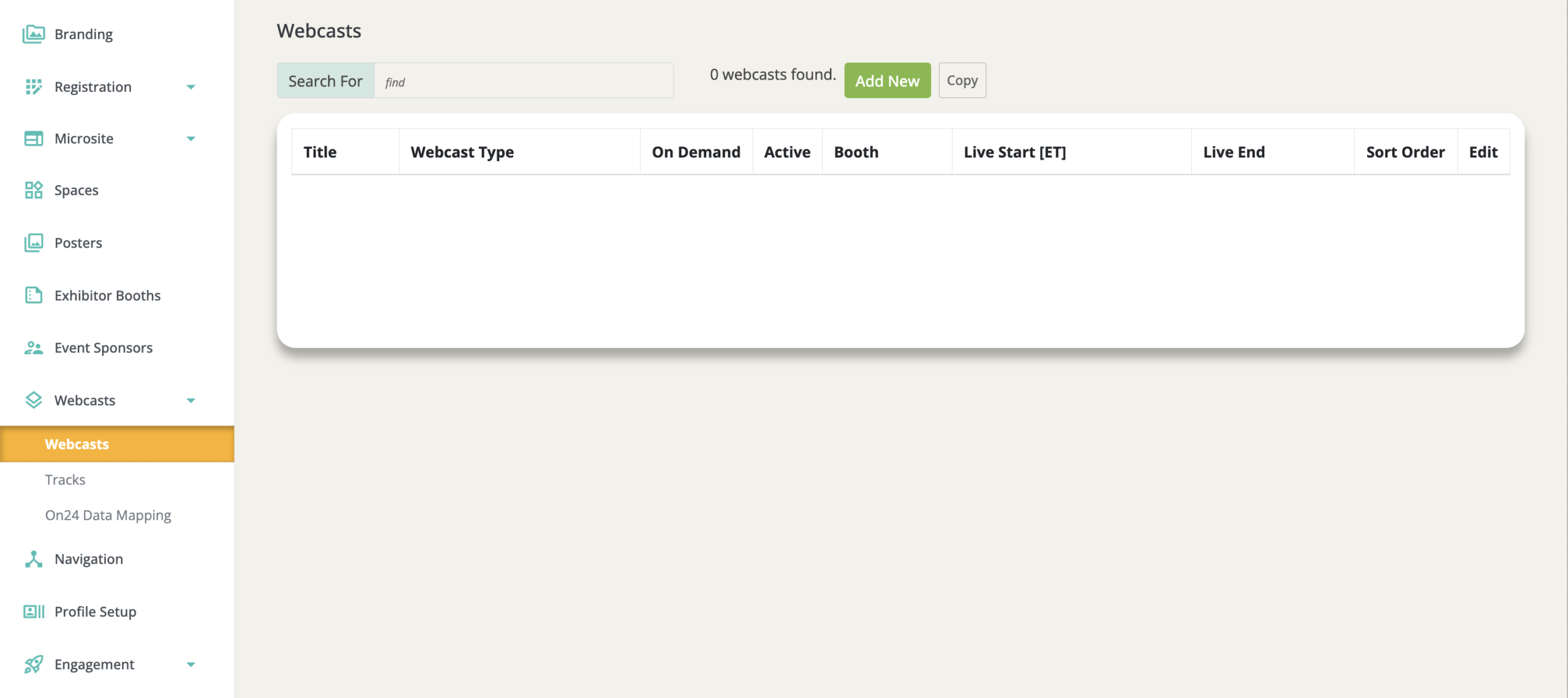
To get started: navigate to your event, select Webcasts from the event menu, and click Add New.
Title
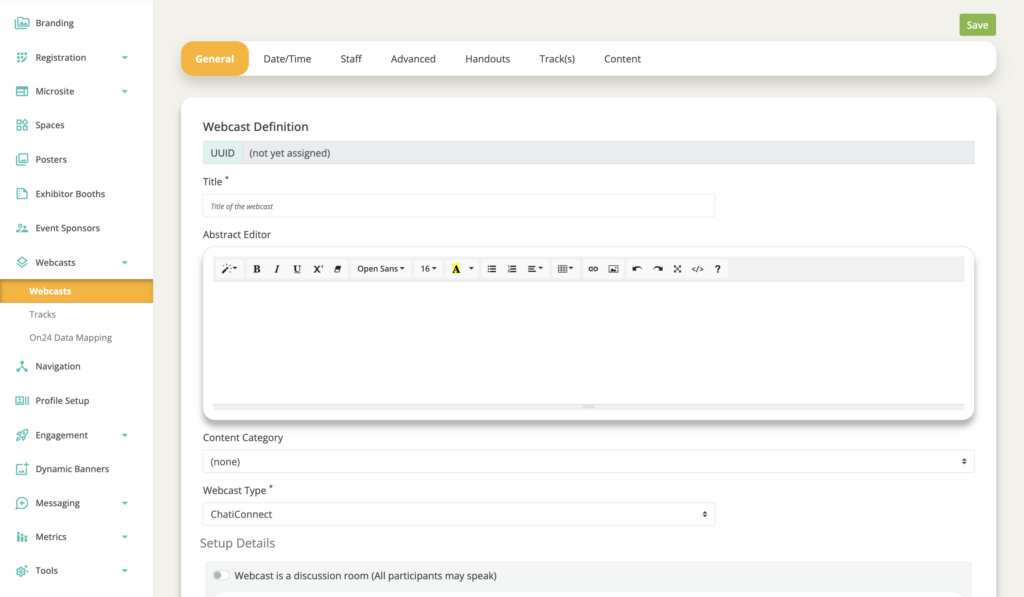
Required. This is the session name attendees will see throughout the event — in theater components, search results, briefcases, and the speaker list. Maximum 300 characters.
Abstract
Optional, but recommended. A brief description or overview of the session. This displays in the theater component's Abstract tab and helps attendees decide whether to join. If no abstract is provided, the Abstract tab will not display for that webcast.
Content Category
Optional. Associates the webcast with a category you've defined at the account level under Account Settings. When selected, the category will appear on the webcast listing and be a filter option.
Webcast Type
Required. This is one of the most important settings on this page. Certain webcast types may have open mode limitations.
| Type | How It Opens | Notes |
| ChatiConnect | Modal, same window, new window | Hosted natively inside Chati. Supports the most features: chat, polls, speaker lists, handouts, and recording. Additional fees may apply — contact your sales rep. |
| Video File | Modal, same window, new window | Upload a pre-recorded video to play inside Chati. Supports content panels, handouts, and forward-seek controls. |
| YouTube | Modal, same window, new window | Embeds a YouTube video inside the event. |
| Zoom | New window only | Must open in a new window — cannot be embedded in the event. |
| Microsoft Teams | New window only | Must open in a new window. |
| Webex | New window only | Opens externally. |
| ON24 | New window only | Opens in a new window. Supports custom data field mapping to pass attendee data to ON24. |
| Webinar.net | Modal, same window, new window | Opens in a modal. Watch time tracking is approximate. |
| Global Meet | New window only | Opens externally. |
| Generic URL | Modal, same window, new window | Use for any external session platform not listed above. |
Sponsor
Optional. Associates a sponsor with the webcast. When assigned, the sponsor's name and logo will be displayed in the webcast listing inside the event.
Webcast Template
Determines the overall layout of the webcast. Your choice here should match your webcast type:
- Chati Connect, YouTube, Generic URL, or Video File sessions: Use the Webcast with Vertical Content template. This enables a right-side content panel where you can add chat, handouts, speakers, polls, and more. If you do not need to add content to your session, select the “Webcast Only” template.
- Third-party sessions (Zoom, Teams, ON24, etc.): Template selection is less critical since the session opens externally, the correct setting will automatically apply.
If you plan to add handouts or content tabs to your session, you must use a template that has content enabled. Chati handouts and content are not available for third-party sessions.
Keywords
Optional. Additional searchable terms not already in the title or abstract. Useful if attendees might search for related topics that aren't explicitly mentioned in the session name.
Event Code
Optional. An external reference code for events using third-party platforms. Used for reporting purposes only — does not affect how the session displays or functions.