

Webcasts are the primary way sessions are delivered inside a Chati event. Whether you're running live presentations, on-demand videos, or third-party integrations like Zoom or ON24, webcasts are the tool to use.
Why Use the Webcast Feature?
You could technically add a video as a handout, but using the formal webcast tool gives you significantly more control and a better attendee experience:
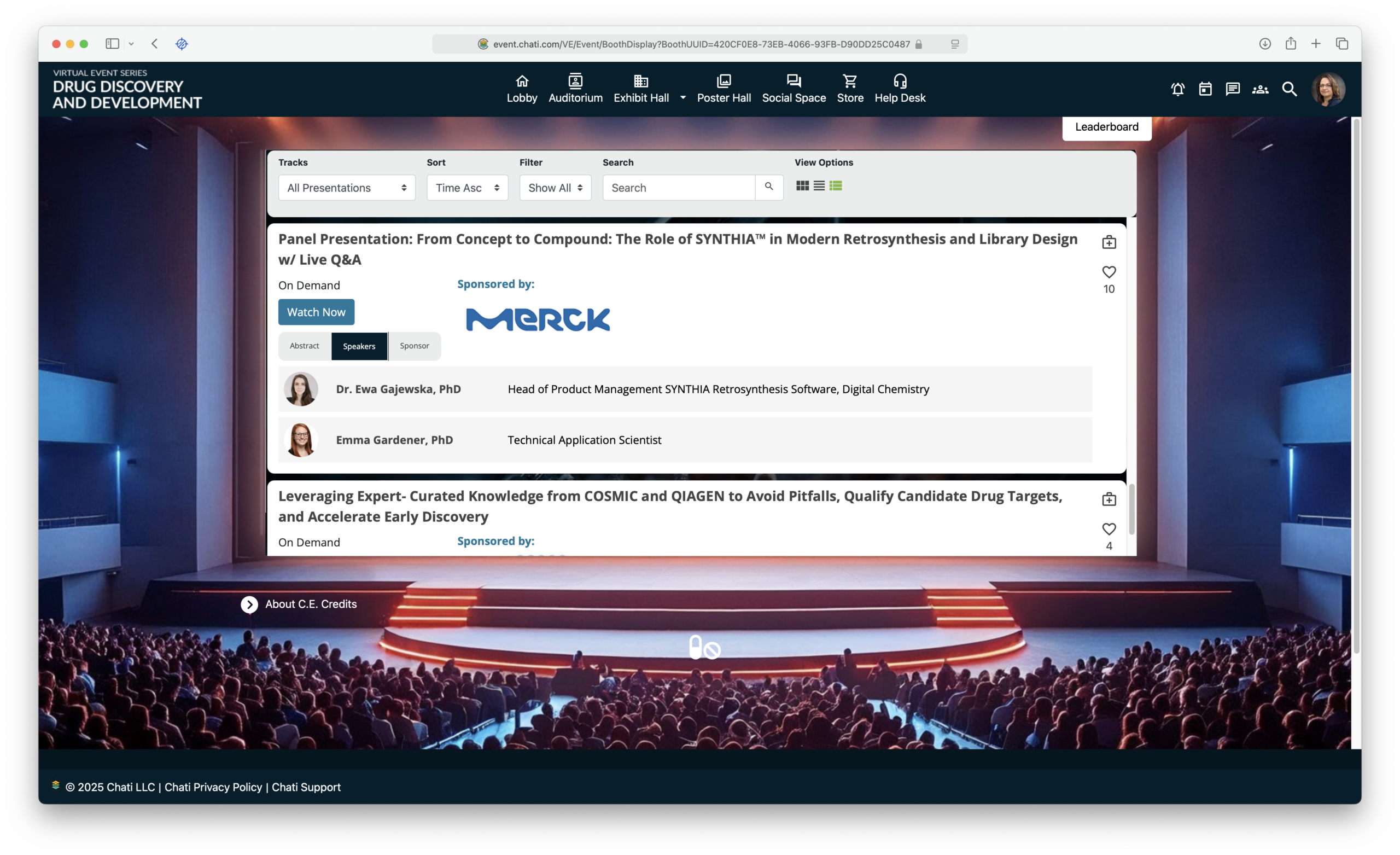
- Theater components in the Space Editor display your webcasts as a structured, scheduled session list that is filterable by track or shown as a full agenda.
- Access states (upcoming, live, on demand) are automatically enforced — attendees cannot enter a session outside of its scheduled window.
- Agenda & calendar — attendees can add upcoming sessions to their in-event agenda or download a calendar reminder directly from the session listing.
- Engagement tracking — The platform tracks live vs. on-demand views separately and provides webcast-specific reporting fields and reports.
- Speaker listing — speaker names, photos, and titles display in the theater component alongside the session.
- Abstract display — session descriptions surface in the component without any extra setup.
- Sponsor & ad linking — sponsors and dynamic banners can be linked directly to the session display in the theater component.
- Entitlement support — webcast tracks can be restricted by registration package, so only attendees with the right entitlement can access specific sessions.
Tip: Always add sessions as webcasts rather than booth handouts. The platform is built to handle sessions this way, and you'll have access to far more functionality.
Webcast Access States
Every webcast moves through states based on the dates and settings you configure. What an attendee sees in the theater component changes at each stage. Admins and assigned webcast staff can always enter early regardless of state.
| Time Window | Attendee Experience | Admins & Staffers |
| 61+ min before Early Entrance Minutes | "Upcoming" — session is listed but not accessible. Clicking opens an error page. | Can enter at any time. |
| 60 min. before Early Entrance Minutes | Label updates to "Doors open in: XX:XX" countdown — counting down to when doors open, not the scheduled start time. Still not accessible. | Can enter at any time. |
| During Early Entrance Minutes | Label updates to "Starting in XX:XX" countdown. Join Now button becomes active — attendees can enter early. | Can enter at any time. |
| During Scheduled Live Times | A flashing green "Live Now" label appears. Join Now button is active. | Can enter at any time. |
| Between Live End & On Demand Start | "Unavailable" — no label, no access. Clicking opens an error page. | Join Now button still active. |
| During On Demand Times | Watch Now button becomes active. Date/time is replaced with an "On Demand" label. Add to Agenda button is removed. | Watch Now button active. |
| After On Demand End Time | "Unavailable" — no access for attendees. | Watch Now button still active. |
A few important notes:
- If there is no gap between your Live End and On Demand Start times, attendees will move seamlessly from live to on-demand access.
When moving into On Demand, ensure that your session is accessible in your webcast type of choice. For example, if you are using ChatiConnect and want to make the recording available On Demand, you must visit the listing and toggle on the recording to give users access. - If a webcast has been manually flagged as on demand in Advanced Settings, the date/time display will be replaced with "On Demand" regardless of the current time window.
- The On Demand button will toggle on when the on-demand period starts. It will not toggle off if you change On Demand dates, so be sure to turn it off if needed.
- The Add to Agenda button only appears for upcoming sessions and is removed once the live window has passed.
- The Add to Calendar button always displays. The Add to Briefcase button can be disabled at the webcast level.
Webcast Types
When creating a webcast, one of the most important settings is the Webcast Type, which determines where the session is hosted and how it opens for attendees.
| Type | Notes |
| ChatiConnect | Hosted natively inside Chati. Supports the most features: chat, polls, speaker lists, handouts, and recording. Additional fees may apply — contact your sales rep. |
| Video File | Upload a pre-recorded video to play inside Chati. Supports content panels, handouts, and forward-seek controls. |
| YouTube | Embeds a YouTube video inside the event. |
| Zoom | Must open in a new window — cannot be embedded in the event. |
| Microsoft Teams | Must open in a new window. |
| Webex | Opens externally. |
| ON24 | Opens in a new window. Supports custom data field mapping to pass attendee data to ON24. |
| Webinar.net | Opens in a modal. Watch time tracking is approximate. |
| Global Meet | Opens externally. |
| Generic URL | Use for any external session platform not listed above. |
How Webcasts Are Organized & Surfaced
Webcasts can be organized and surfaced in several ways throughout the event:
- Tracks — Group webcasts into thematic or scheduling tracks. Theater components can be filtered by track, and tracks can be tied to registration package entitlement so only eligible attendees see certain sessions. See Webcast Tracks.
- Theater Components — Added in the Space Editor, these display a list of webcasts with their current state, abstract, speakers, and action buttons. You can show all webcasts or filter by track.
- Direct Session Links — A single webcast can also be linked directly using a hotspot, button, dynamic banner, or other navigation element in any space — no theater component required.
- In-Booth Presentation — Webcasts can be assigned to a booth and displayed as a grouped list within that space using the Space Webcast List content feature.