

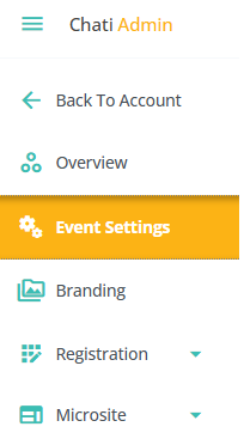
1. Click ‘Event Settings’ on the Event Settings Panel.
2. Under ‘Settings’ fill out the following:
- Title*
- Owner (whoever created it will be listed as the owner by default)
- Login Method (determine how attendees login to your event)
- When selecting the login method email and password, be sure to include password creation in your event’s registration process.
- The login method “email address only” is the most used login method.
- Anonyms login requires no email or profile information, as such it will reduce tracking and reporting depth.
- Default Time Zone
- Default Language
- Approval Level (for internal tracking purposes only)
- Event Options (toggle on or off):
- Event is Published (if turned off, you will not be able to preview your event environment)
- Template Mode
- Test Mode
- Default Handout View
- Edit Locked
- Event Landing Page (first space that attendees are taken to within the event environment)
3. Click the ‘Options’ tab
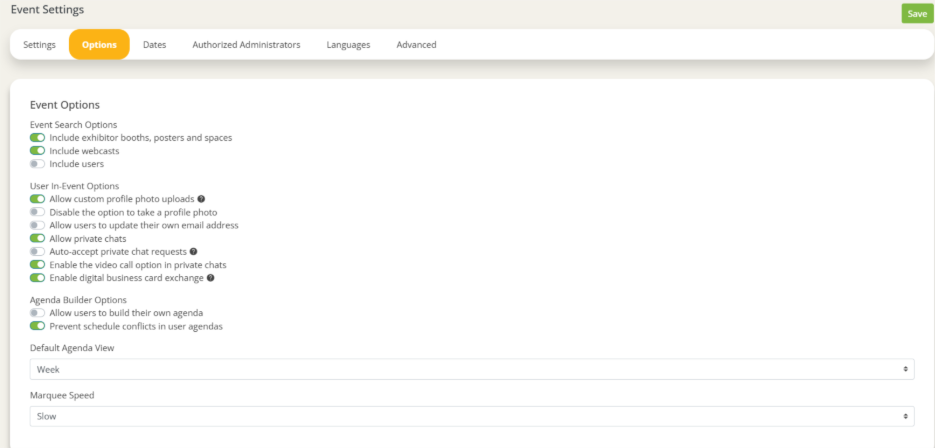
4. Toggle the following on or off:
Please note:
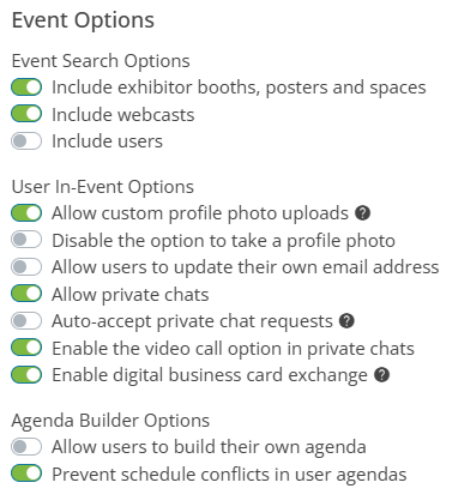
- Event Search Options (Defines what you see in the event search)
- User In-Event Options (Custom profile photo uploads, allowing private chats, and other options that give users more customization options within the event
- Agenda Builder Options (If you want to limit the items that users are able to add to their agenda, etc.)
- When enabling the agenda builder in your event, add “My Agenda” as a navigation bar item for your attendees
5. Set the following:
- Default Agenda View
- Marquee Speed
6. Click ‘Save’