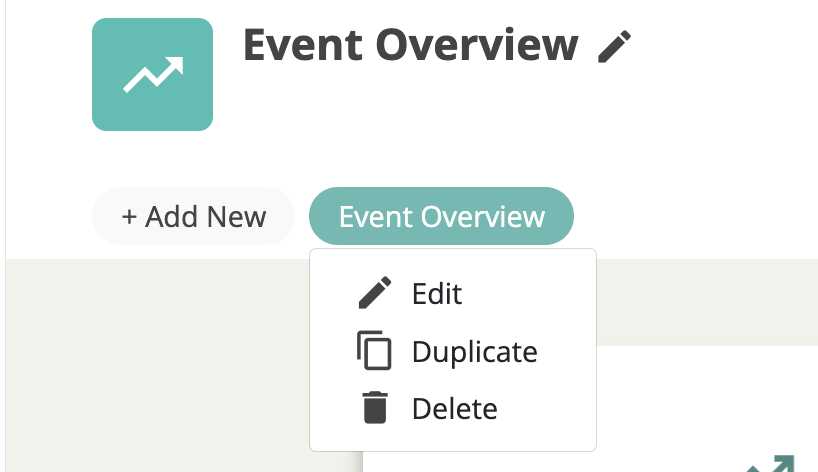

1. Click ‘Metrics’ on the Event Settings Panel.

2. Click the 'Dashboards’ tab, then ‘+ Add Dashboard’
- Add Dashboard Title*
- Dashboard Description
- Toggle View and Edit functions (decide if others can view and/or edit the dashboard)
- Select Icon
- Select Color
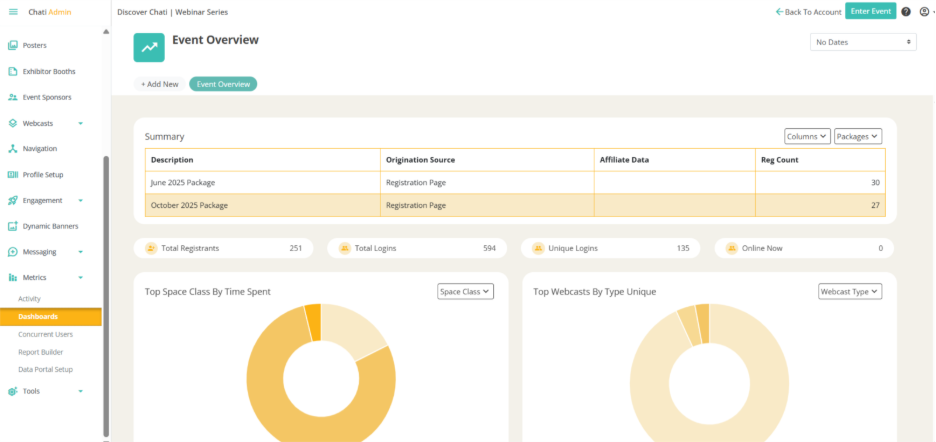
3. Click ‘+Add Widgets’ in upper righthand corner
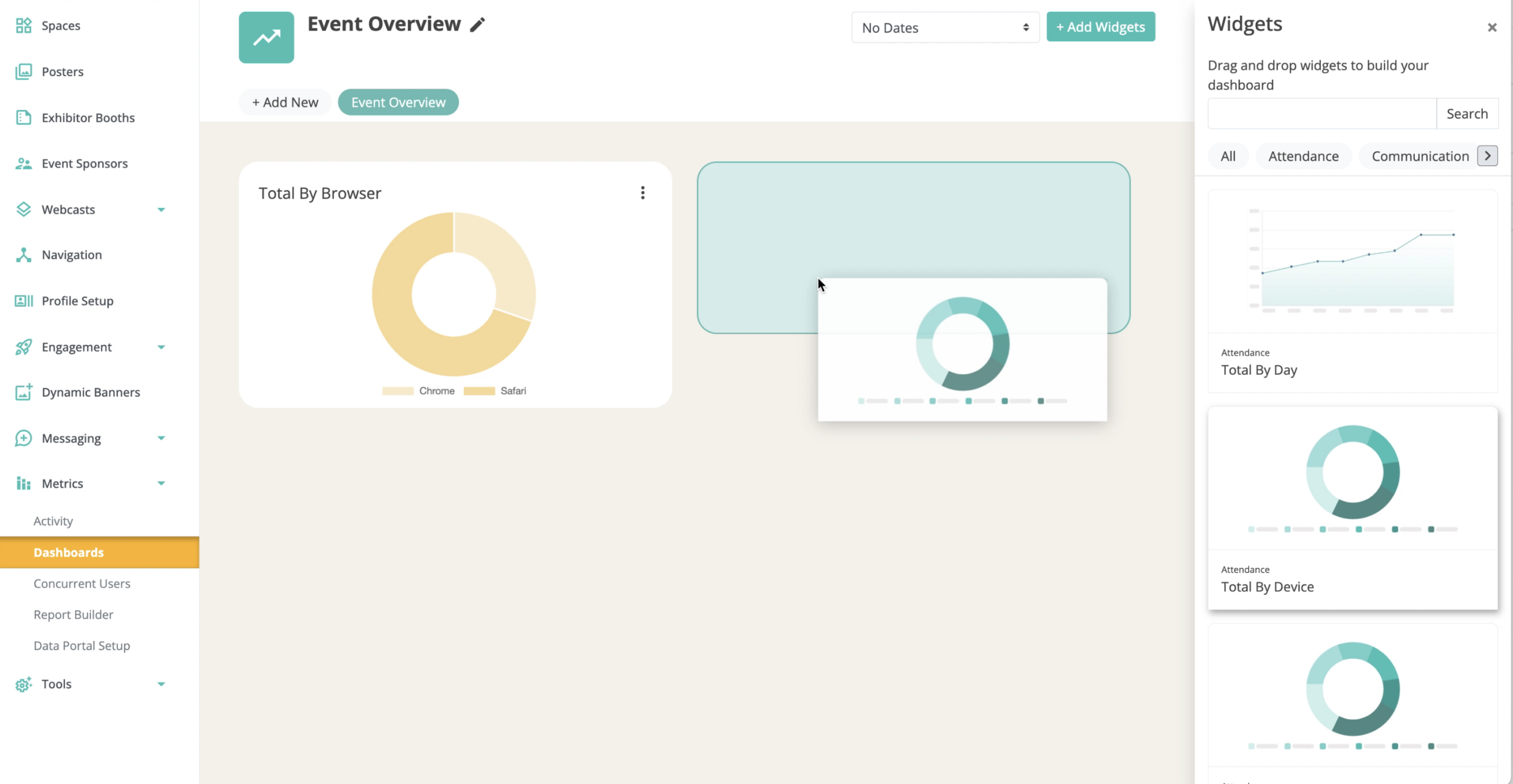
- Filter widgets by different categories, and decide which you would like added to the dashboard
*Ex. Attendance, Communication, etc.
- Once selected, the metrics will display in a graph that is predetermined based on the selected data
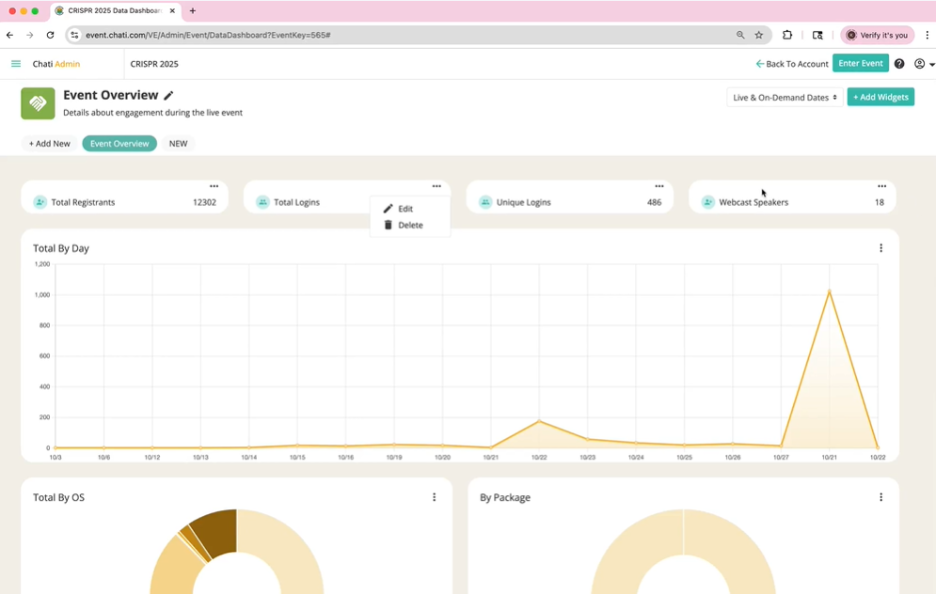
4. ‘Overview’ widgets are added across the top of the screen. To edit, click the three buttons on the right of the widget.
- ex. Total Registrants, Total Logins, Unique Logins, Webcast Speakers.
- You can have up to four data points displayed on top, and they can be rearranged
5. Hover over the bar graph or pie charts for more numbers/metrics to be displayed. Additionally, click on items within the graphs to remove them from the list.
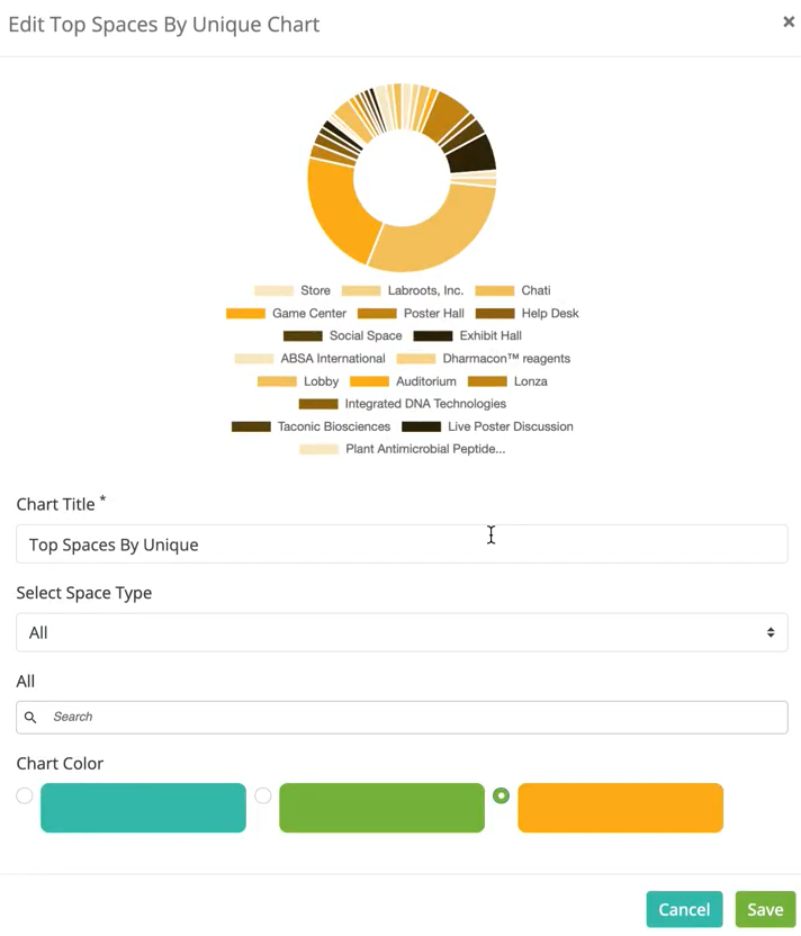
6. Select the 3 ‘more’ dots and click edit. By doing so, you can edit the following:
- Chart Title*
- Content
- Chart Color
*Keep in mind that you can edit filters and content in the chart depending on that specific widget. Only Chart Title and Color are consistent on all charts.
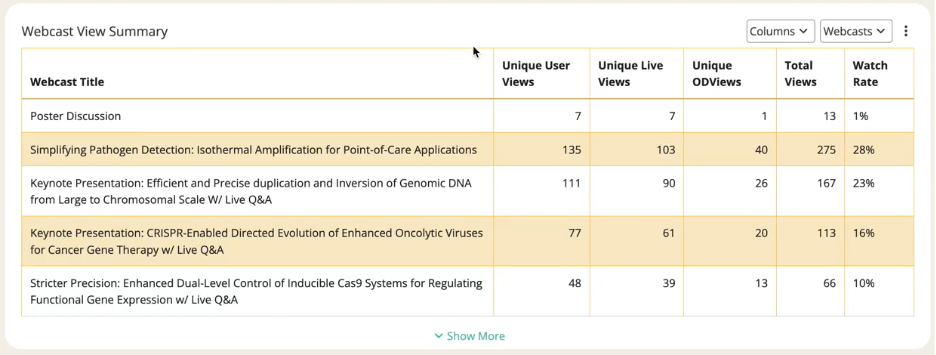
7. The Webcast View Summary is extremely useful if event is webcast-heavy. All webcast sessions are pulled by default. Here, you can find the following metrics on your webcast(s):
- Unique User Views
- Unique Live Views
- Unique On Demand Views
- Total Views (Total number of times the webinar has been viewed including live attendees, on-demand viewers, and repeat views)
- Watch Rate (Percentage of webinar registrants who actually watch the webinar)
Note: The Event Chat Summary widget uses the following logic:
- Private Chat Users: The number of unique attendees who sent at least one private message in the event.
- Group Chat Users: The number of unique users that sent at least one group chat in the event.
- Group Messages Sent: The total number of group messages sent in the event.
- Private Messages Sent: The total number of private messages sent in the event.
- Chat Adoption Rate: The percentage of attendees (attended the event at least once) who used any chat feature compared to the total number of registered users.
*More column options are available in the ‘columns’ dropdown. The above default options.
* Use the dropdown in the upper righthand corner to filter your dashboard dates (ex. Live Dates, Live & On-Demand Dates, etc.)
* To delete a dashboard, right click on the dashboard chip at the top and select "Delete"