

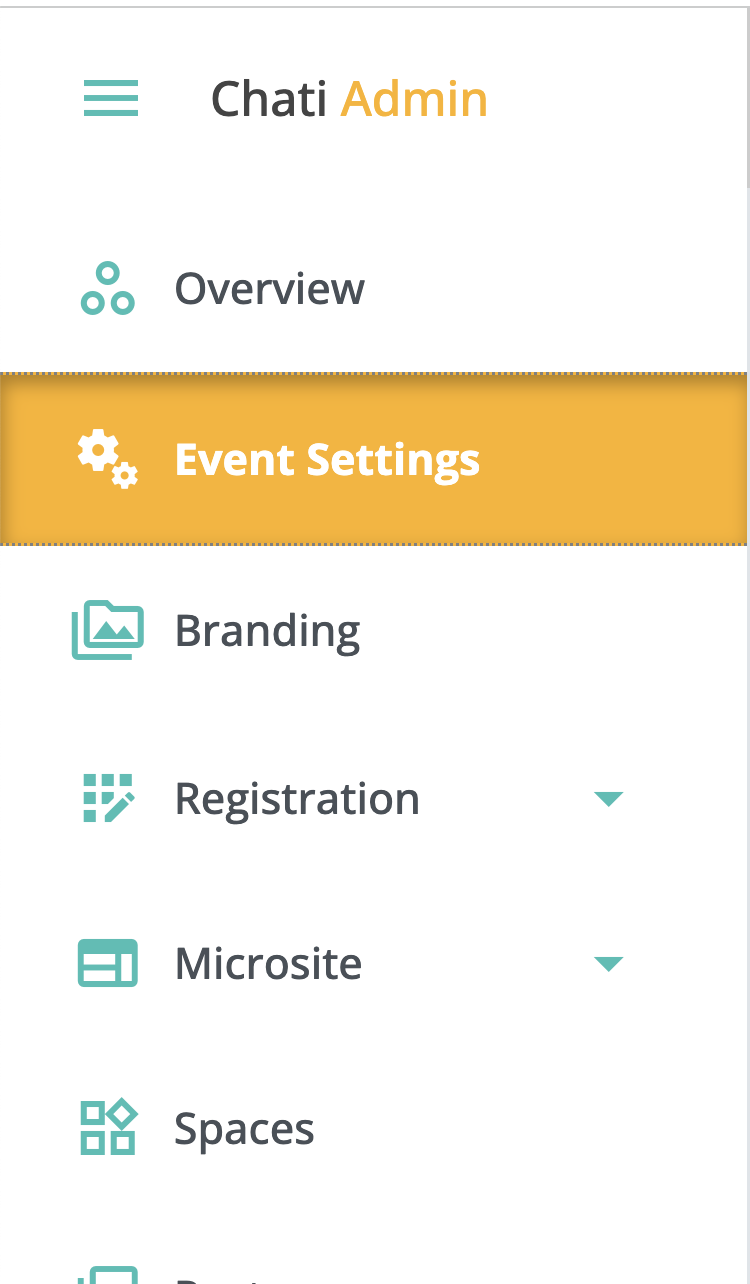
1. Click ‘Event Settings’ on the Event Settings Panel.
2. Click the ‘Dates’ tab
*Admins should always set event dates.
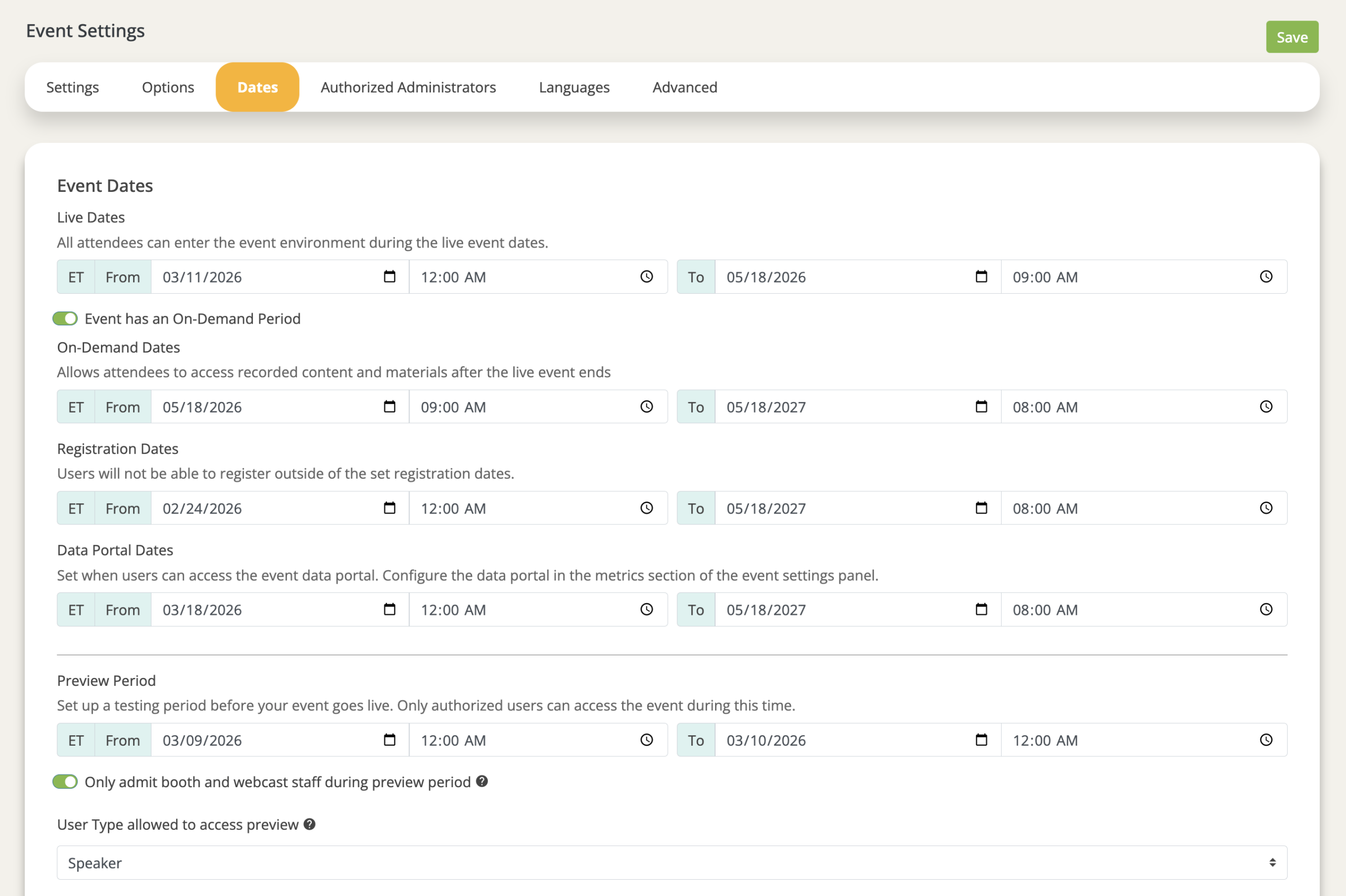
3. Set the following:
- Live Dates: All attendees can enter the event environment during the live event dates.
- On-Demand Dates: Allows attendees to access recorded content and materials after the live event ends
- Registration Dates: Users will not be able to register outside of the set registration dates.
- Data Portal Dates: Set when users can access the event data portal. Configure the data portal in the metrics section of the event settings panel.
- Preview Period: For setting up a testing period before your event goes live. Only authorized users can access the event during this time.
- Preview Period Options:
- 'Only admit booth and webcast staff during preview period': This setting will only allow users added as staff in spaces, booths, or webcasts the ability to enter the event during the preview period. Note: this toggle is overridden if a User Type is set in the field below.
- User Type allowed to access preview (attendee, exhibitor, any, etc.): This setting will restrict preview period access to a unique user type, which can be assigned during registration or manually for each user. Note: when this field is populated, it becomes the sole access control for the preview period and the booth and webcast staff toggle above will have no effect.
- Important: Each user can only hold one user type at a time. If a user's type is changed (e.g. from Booth Rep to Speaker), their access will be determined by their new user type. Simply adding a user as booth or webcast staff will not override an existing assigned user type. Always ensure a user's primary user type aligns with the access controls set for the preview period.
- 'Only admit booth and webcast staff during preview period': This setting will only allow users added as staff in spaces, booths, or webcasts the ability to enter the event during the preview period. Note: this toggle is overridden if a User Type is set in the field below.
- Preview Period Options:
4. Click ‘Save’