

The Date/Time tab controls when attendees can access your webcast — both during the live session and for on-demand replay. Getting these right is critical, as attendees will be locked out of the session outside of the windows you define.
Note: Chati Admins and designated webcast staff can enter the webcast at any time, regardless of the dates set here.
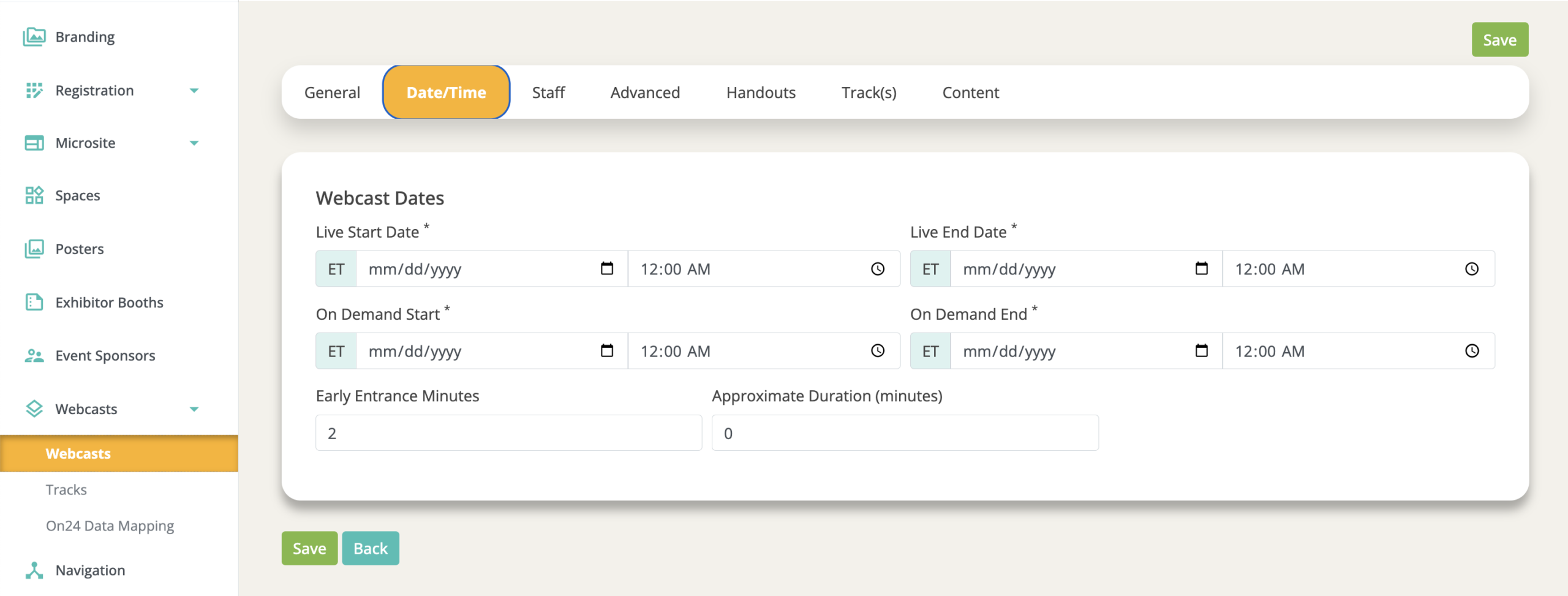
Live Start Date & Time
The scheduled start time for the webcast. This is when attendees will be able to access the session (subject to Early Entrance Minutes — see below).
Set this to reflect when you expect the session to go live in your agenda. The platform uses this time to drive the countdown timer and status labels attendees see in the theater component.
Live End Date & Time
The date and time the live session will end. Once this passes, attendees can no longer access the webcast unless an On Demand window is configured.
On Demand Start & End
Defines the window during which the session is available for replay.
- On Demand Start: When attendees can begin watching the recorded session.
- On Demand End: When on-demand access expires. After this point, only Admins and webcast staff can access the session.
Important: If there is a gap between your Live End time and your On Demand Start time, attendees will have no access to the session during that period. Plan your dates to avoid unintended blackout windows. See Webcasts Overview for a full breakdown of access states by time window.
Early Entrance Minutes
The number of minutes before the Live Start time that attendees can enter the webcast. This allows attendees to trickle in before the session officially begins.
For example, if your session starts at 2:00 PM and you set 10 Early Entrance Minutes, attendees can join starting at 1:50 PM.
Best practice: Always configure a few Early Entrance Minutes. It gives attendees a buffer to get settled and reduces the rush at the exact start time.
During Early Entrance Minutes, the theater component label updates to "Starting in XX:XX" — a countdown to the official start time, not to when doors opened.
Approximate Duration
Optional. An estimated length for the session. This is surfaced to attendees in the session listing so they can plan their time.
This field also becomes important if you are using webcast completion tracking or user journey features, where duration is used to calculate completion thresholds.
Planning Your Date & Time Setup
A few common scenarios and recommendations:
Live-only session (no replay) Set a Live Start and Live End. Set On Demand dates to start and end 1 minute after the live session ends. Attendees have access only during the live window.
Live session with immediate on-demand replay Set Live Start/End, then set On Demand Start to match (or shortly after) your Live End time. This ensures no gap in access. When planning for On-Demand after a live session, be sure your session type will be available. For example, when making a ChatiConnect session On-Demand you must go in the general settings configuration, select the recording, and save the page.
On-demand only session Live and On Demand dates must still be set. Use the manual On Demand toggle in Advanced Webcast Settings to flag the session as on demand from the start.
Testing access before the event Use the Test Mode or Bypass Date Restrictions toggles in Advanced Webcast Settings — don't adjust your live dates just for testing purposes.