

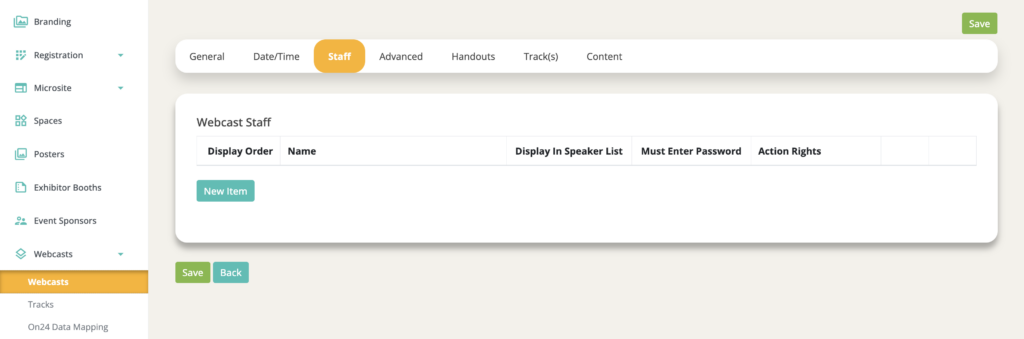
The Staff tab is where you assign users to a webcast with elevated access and optional speaker display. Staffers can be existing attendee or admin users, and their rights are scoped specifically to the webcasts they are assigned to.
Why Assign Webcast Staff?
There are two main reasons to add someone as a webcast staffer:
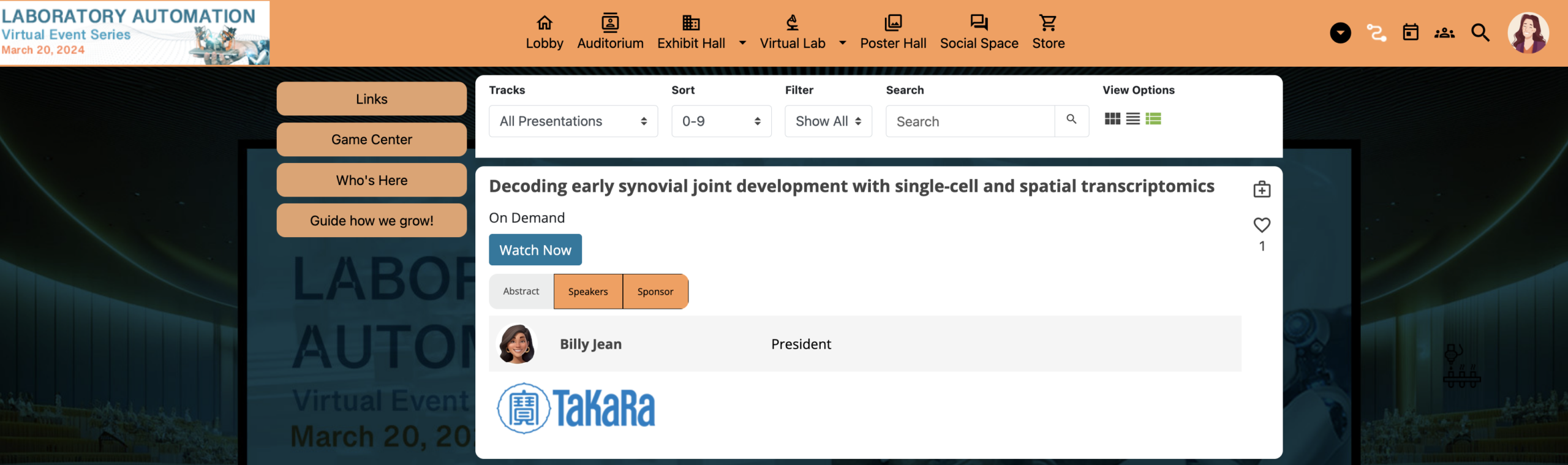
- Display them as a speaker — staffers with "Display in Speaker List" enabled will appear in the theater component's Speakers tab, showing their name, photo, and job title alongside the session.
- Grant elevated access — staffers can enter the webcast at any time, regardless of scheduled dates or the session's active status. This is essential for moderators, speakers, and support staff who need to get into a session early.
Before You Add Staff
Users must already exist in the system before they can be added as webcast staffers. There are commonly two ways to make sure your speakers are in the platform ahead of time:
- Self-registration — direct speakers to register through your event registration page.
- Bulk registration (recommended) — compile an Excel file with speaker names, emails, and profile details, then upload via the Bulk Register feature. This is the more reliable option since speakers may not register on their own in time.
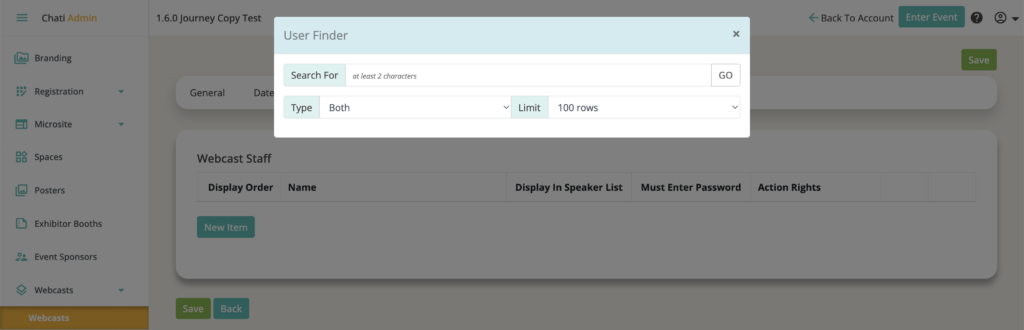
Once users exist in the system, go to the Staff tab within each webcast, click Add New, and search for the user by name or email.
Staff Settings
After selecting a user, you can configure the following for each staffer:
Display in Speaker List
- Enabled: The staffer's name, photo, and job title appear in the theater component's Speakers tab.
- Disabled: The staffer has elevated access but does not appear publicly as a speaker.
Display Order
Controls the order in which speakers appear in the session listing. Defaults to ascending order. Use increments of 10 to leave room for last-minute additions.
Staffer Role
Staffer roles define what controls a staffer has access to inside the session. These are only applicable to ChatiConnect sessions — they have no effect on third-party session types like Zoom or ON24.
Available permissions include:
| Permission | What It Does |
| Video Pod | Allows the staffer to go on camera or unmute. Required for any staffer who needs to speak or appear on video. |
| Participant List | Allows the staffer to see who is in the session. |
| Participant Controls | Allows the staffer to mute or unmute other participants. |
| Recording | Allows the staffer to start and stop session recording. |
| End Session | Allows the staffer to end the session for all participants. |
| Polls | Allows the staffer to create and send polls. |
| Screenshare | Allows the staffer to share their screen. |
Tip: Custom staffer roles can be pre-configured at the account level under Account Settings > Webcast Roles, so you don't have to set permissions individually for every staffer across every session.
Must Enter Password
This feature is not yet available.
Override Speaker Information
By default, a staffer's public-facing information (name, photo, job title) is pulled from their user profile. If you need to display different information for a specific session — without changing their actual profile — use the Override Speaker Information section.
This is useful when a speaker has updated their profile photo or display name but you want a specific version to appear in the event, or when a speaker is presenting under a different title than their profile shows. Override Speaker Information
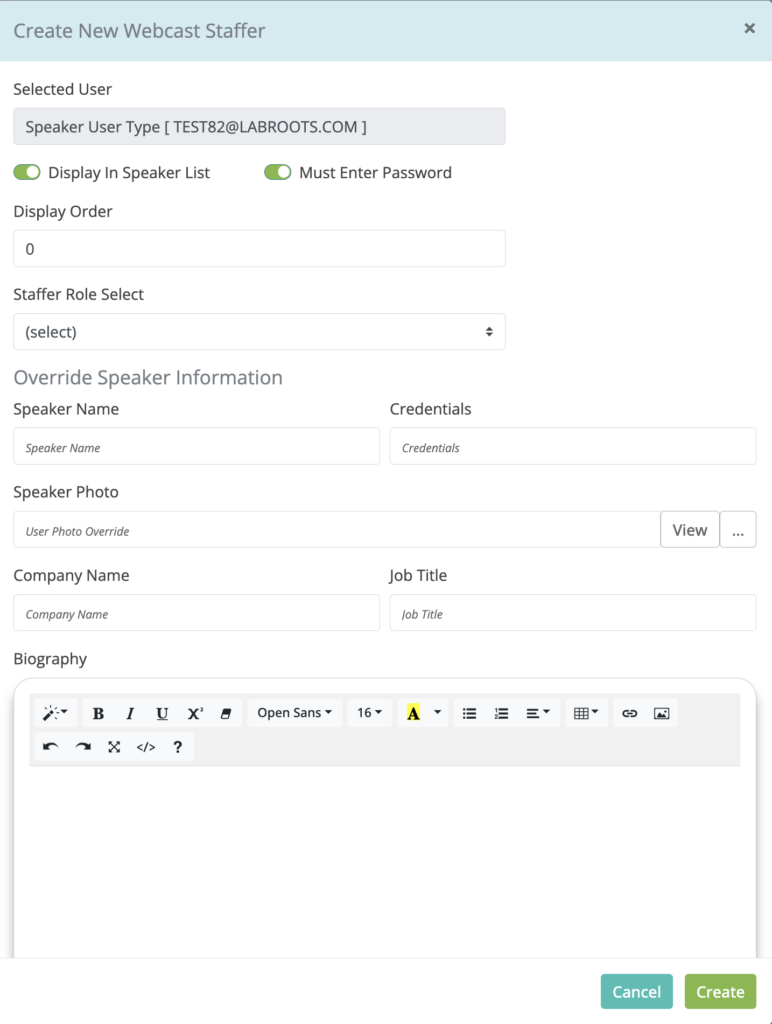
Overrides apply only to this webcast. The staffer's actual profile remains unchanged everywhere else in the event.