

Organize your webcasts into themed collections with tracks. Group related content by topic, series, or audience to help attendees discover relevant webinars and streamline your content management.
1. Start at the Event Level
2. Click ‘Webcasts,’ then ‘Webcasts’
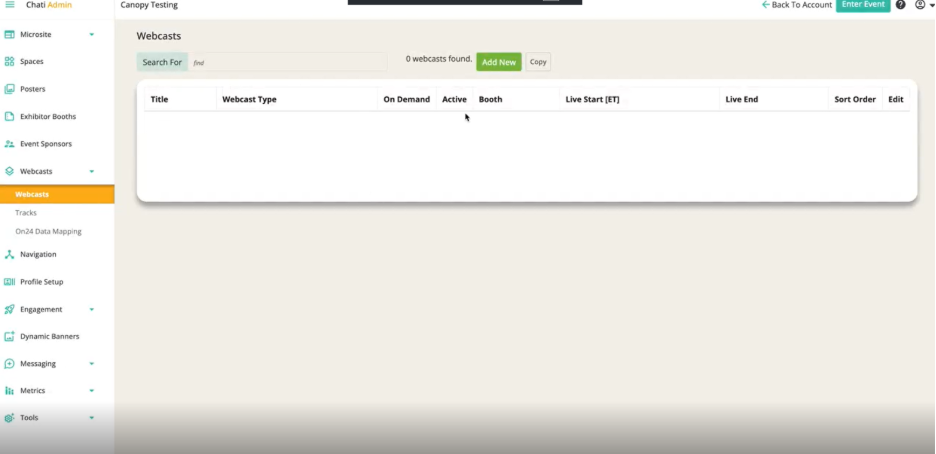
3. Click ‘Add New’
4. Fill out the required information for your webcast.
- Track Title*
- Display Order*
- Set the order in which this track appears in lists and menus. Lower numbers appear first (e.g., 1 appears before 2)
- External ID
- For API connections
- Default Webcast Sort Order
- Choose how webinars within this track should be ordered by default when displayed to attendees
- Webcasts Belonging to This Track
- Once you have webcasts available in the backend, you will select which existing webcasts should be included in this specific track.
- To create new webcasts, go the ‘Webcasts’ section and assign them to tracks during creation
5. Click 'Save'