

While some components of login pages are already templated out, they can be changed. Some items that can be changed include; button color and size, adjusting text sizes, etc.
1. Start at the Account Level
2. Click ‘Account Settings,’ then ‘Page Templates,’ then ‘Login’
3. Click ‘Add New’
4. Provide a ‘Template Description,’ and click ‘Copy From A System Template’
5. Click ‘Select System Template,’ to view a dropdown list of available templates to start from
6. If wanting to update a standard login page, click ‘Login- Default Template (system)’
7. Under ‘Select Template Category’ select ‘Basic Login’ and click ‘Create’
8. Click into the template you just selected from the ‘Page Template List – Login’
- Within this template, you will see all of the items that you can engage with:
- Event Title
- Live Date Time
- Login Fields
- Buttons
- Imagery (banner, account logo, etc.)
- Template images are being pulled dynamically from the backend, populating with the template banner image
To adjust colors or text, click on an element then select the paintbrush icon in the top bar menu. Scroll to the setting you want to adjust (opacity, text, color, etc.)
Note: Do NOT remove any login fields or placeholder error messaging at the template level. Login fields will automatically adjust based on the login method selected in event settings. Templates use classes and CSS that may be tricky to adjust, so only adjust what is necessary.
9. Once the template design is complete, click ‘Save’ (floppy disk icon in the top bar)

10. Click ‘Events’ in the Event Settings Panel, and click into your event
11. To use the login page that you just edited, click 'Tools’ in the Events Setting Panel, then ‘Template Matrix’
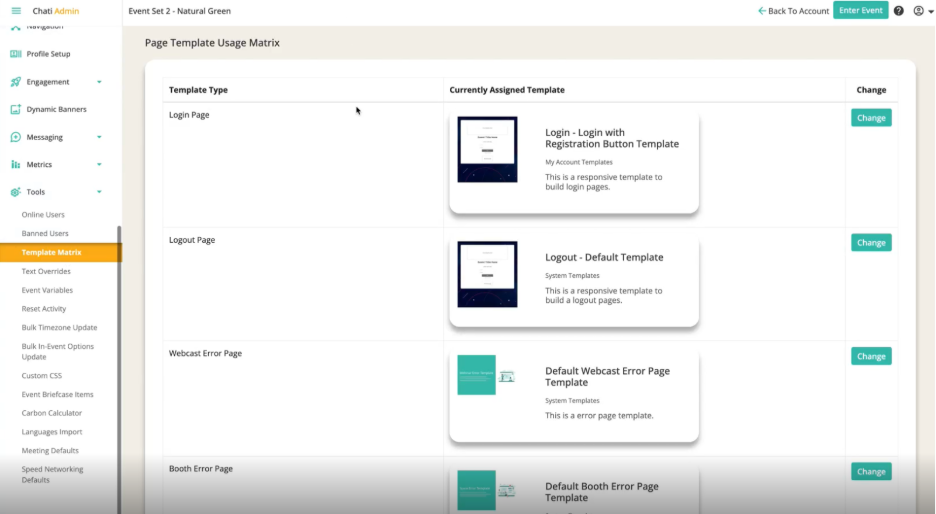
12. Find the login page, and click ‘Change’
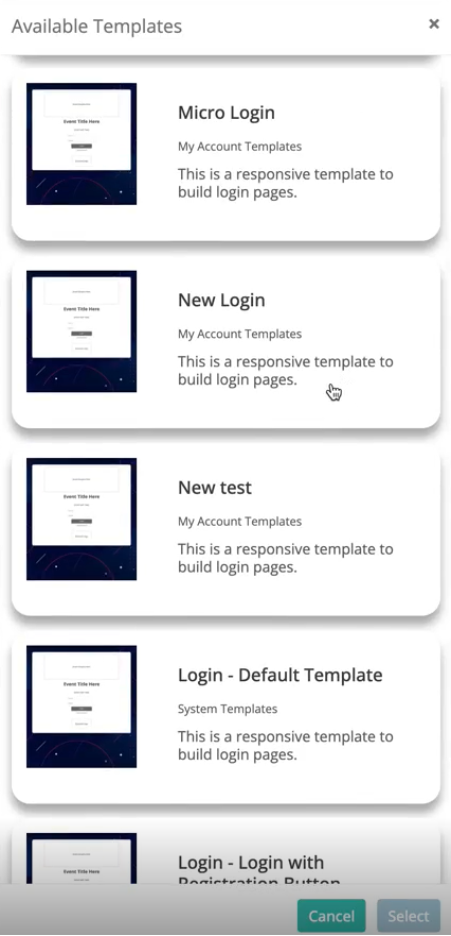
13. Find the login page you edited, and click ‘Select’
14. Click ‘Save’