

Attendees and staff can now share photos in chat. Use it for a quick snapshot of a poster, a slide, a booth demo or a screenshot of something when attendees need help Photo sharing is on by default for new events, but permissions can be changed at any time.
What you can share
- Up to 4 photos in one message
- Up to 25 MB per photo
- JPG, PNG or GIF files
For privacy, location data is removed from every photo when it's uploaded.
Turn photo sharing on or off
- In your event, go to Event Settings > Options > Chat Options.
- Under photo sharing, choose your settings:
| Setting | What it controls |
|---|---|
| Allow photo sharing in chat | Turns photos in chat on or off for the whole event |
| Allow photos in event and session chat | Booth, poster, space, track and webcast chats |
| Allow photos in private chats | One-to-one chats. Choose Only with a staffer or admin or All private chats. |
- Save your changes.
Changes apply the next time someone opens the chat. Photos that were already sent stay visible when you turn sharing off.
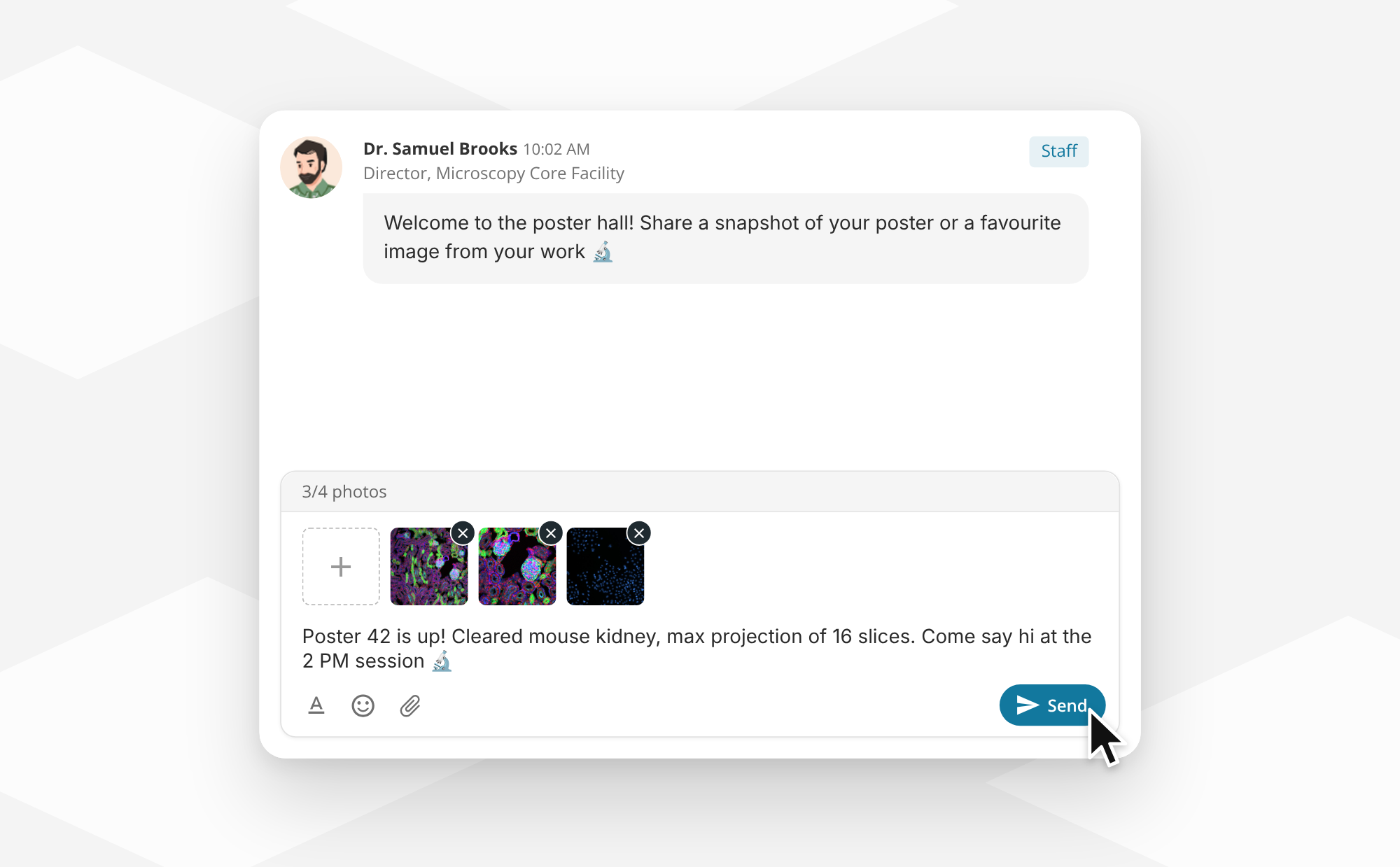
Share a photo
- In any chat, click the paperclip icon and choose your photos. You can also drag photos into the chat or paste them from your clipboard.
- Add a message if you like.
- Click Send.
When photo sharing is off
- Off for the whole event: the paperclip icon doesn't appear in chat.
- Off for that kind of chat: the paperclip is greyed out, with the message Photo sharing is turned off in this chat.
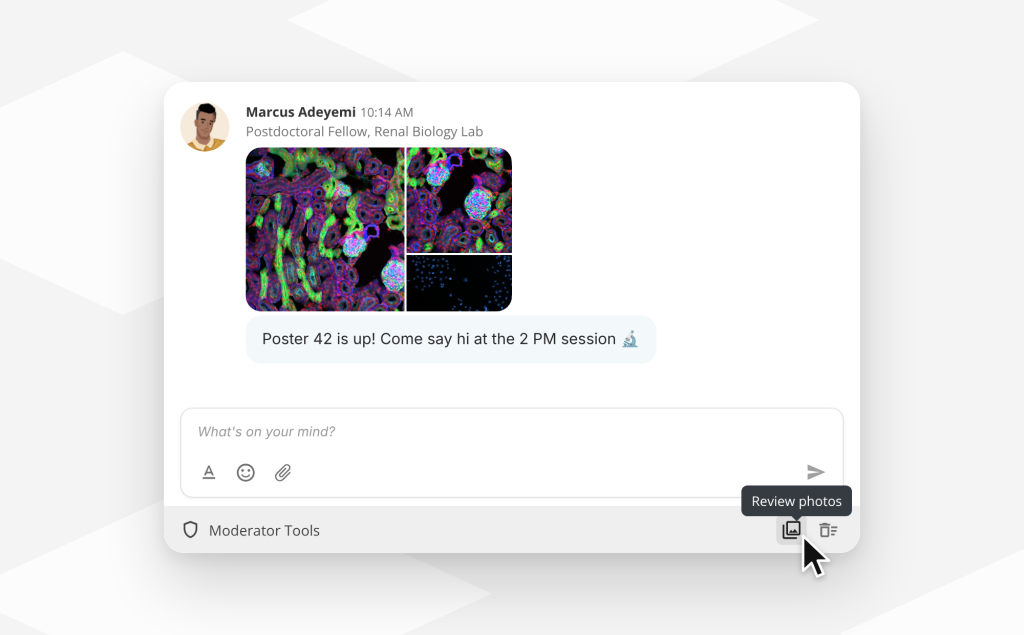
Remove a photo (staff and senders)
The person who sent a photo, event admins and space staff can remove it:
- Hover over the photo and click the delete icon to remove just that photo, or use the message menu to delete the whole message.
- Confirm when prompted.
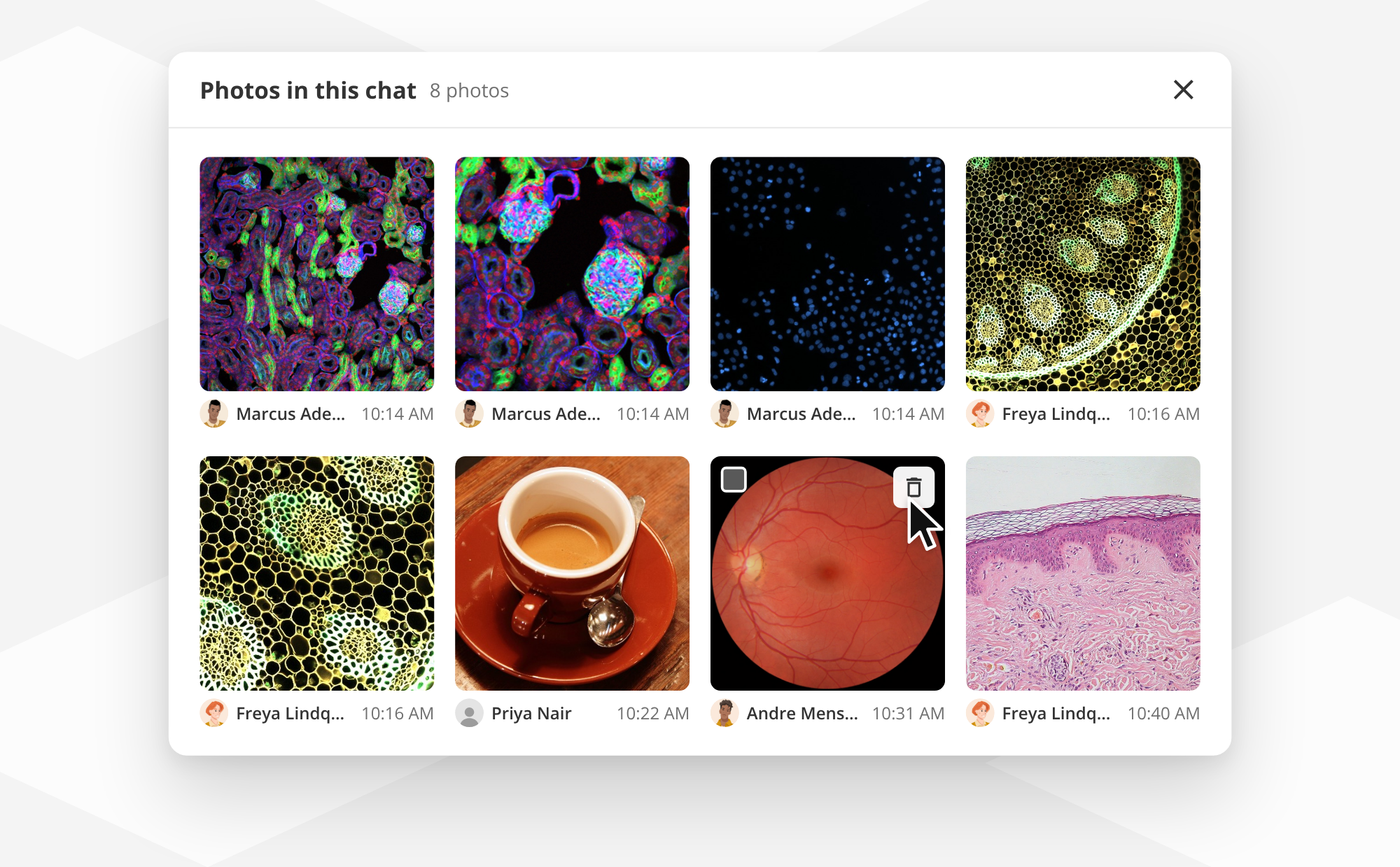
Review photos in a chat (staff)
Event admins and space staff can see every photo shared in a chat in one place. In Moderator Tools at the bottom of the chat select the photo icon. From there you can open or remove any photo.
Tip: Turn on Allow photos in private chats with Only with a staffer or admin if you want attendees to send photos to your support team without opening photo sharing between attendees.