

Event admins and staff can share handouts straight into group and private chats. That way, the right resource reaches an attendee the moment they ask for it. For example, you can drop the Attendee Guide into the help desk chat, or send a brochure and demo video to a booth visitor in a private chat. Attendees open shared handouts the same way they would from the space.
Who can share handouts
Handout sharing is on by default for every event, and both event admins and staff can share.
- Event admins can share in every group chat and every private chat.
- Staff (anyone added as staff on a space, booth, poster or webcast) can share in the group chats of the spaces and webcasts they staff, and in any private chat. They can only share handouts from the spaces and webcasts they staff.
- Attendees can open shared handouts but can't share them.
Turn handout sharing on or off
- In the admin, open your event and go to Event Settings > Options.
- Scroll to Chat Options and find Handout Sharing Options.
- Turn Allow handout sharing in chat on or off.
- If it's on, choose Who can share:
- Event admins only: only event admins can share handouts in chat.
- Event admins and staff (default): event admins, plus anyone added as staff on a space, booth or webcast. Staff can only share handouts from the spaces and webcasts they staff.
- Click Save.
Good to know: turning handout sharing off hides every handout already shared in chat. Changing it to Event admins only hides the handouts that staff shared. A message that held only handouts disappears. A message with a note keeps its note but loses the handouts. Turn the setting back on and the shared handouts come back. This setting copies with the event.
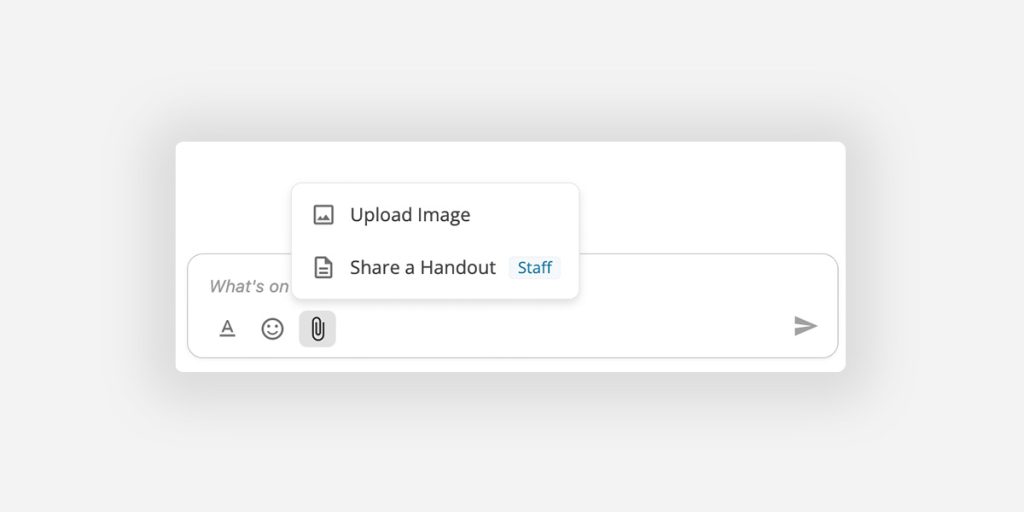
Share a handout
- In a chat, click the paperclip in the message box, then choose Share a Handout.
- The picker opens. Recently shared sits at the top, so the handouts you share most are easy to find. Below it you'll see the handouts you can share here:
- In a group chat: the handouts for that space or webcast.
- In a private chat: staff see the handouts from the spaces and webcasts they staff, with a switcher if they staff more than one. Event admins can search all of the event's handouts or browse one space at a time.
- Select up to 10 handouts. The count (for example, "2 of 10 handouts") shows what you've picked.
- Add a note if you like (optional), then click Send.
Inactive handouts can't be added to chat.
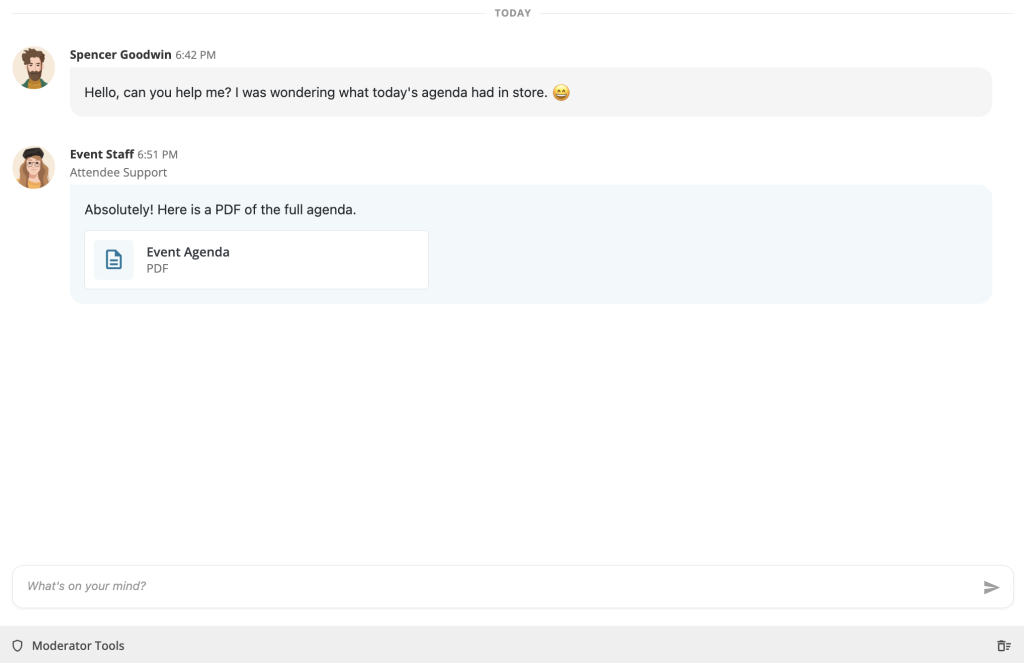
What attendees see
Each shared handout appears in the message as a card with an icon and its title. If a message has more than 3 handouts, the first 3 show and the rest sit behind Show more.
Clicking Open opens the handout the same way it opens from the space. It follows the handout's own settings and the event's Default Handout View (modal or new tab). Word, PowerPoint and Excel files download directly.
Handouts opened from chat count toward your handout reporting, just like handouts opened from a space or webcast.
Edit, delete and pin
Pin: pin a handout message with the usual pin button to keep it at the top of the chat. The pinned message shows the handouts and the note.
Edit: you can edit the note or delete handouts already in the message but not add more handouts to the same message.
Delete: deleting the message removes it for everyone. Moderators can delete handout messages like any other message.