

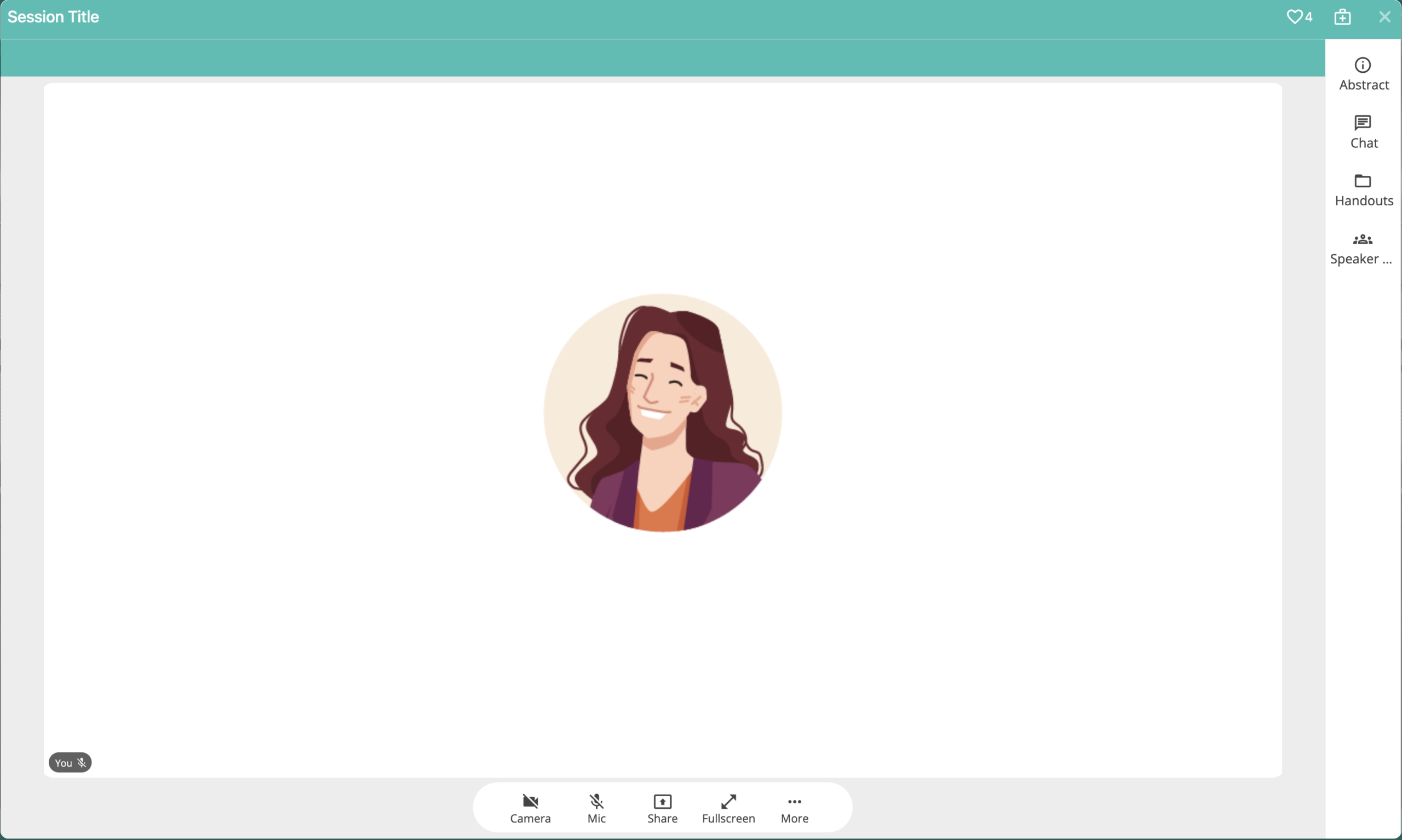
Webcasts can be enriched with supplemental materials and interactive content tabs that display alongside the session. This is only applicable for sessions hosted natively inside Chati — Video File, Chati Connect, Generic URL, and YouTube webcast types — where a right-side content panel is available for attendees to engage with during the session. Content and handouts cannot be added to third party sessions.
Prerequisite: To display handouts and content tabs, your webcast must use the Webcast with Vertical Content template. If you don't have this template selected, content you add here will not appear for attendees. See Webcast General Settings.
Handouts
Handouts are supplemental files or links attached to a webcast — things like presentation slides, reference documents, or external resources. Once added, they must also be added to a Content Feature tab (see below) to appear in the session.
Adding a Handout
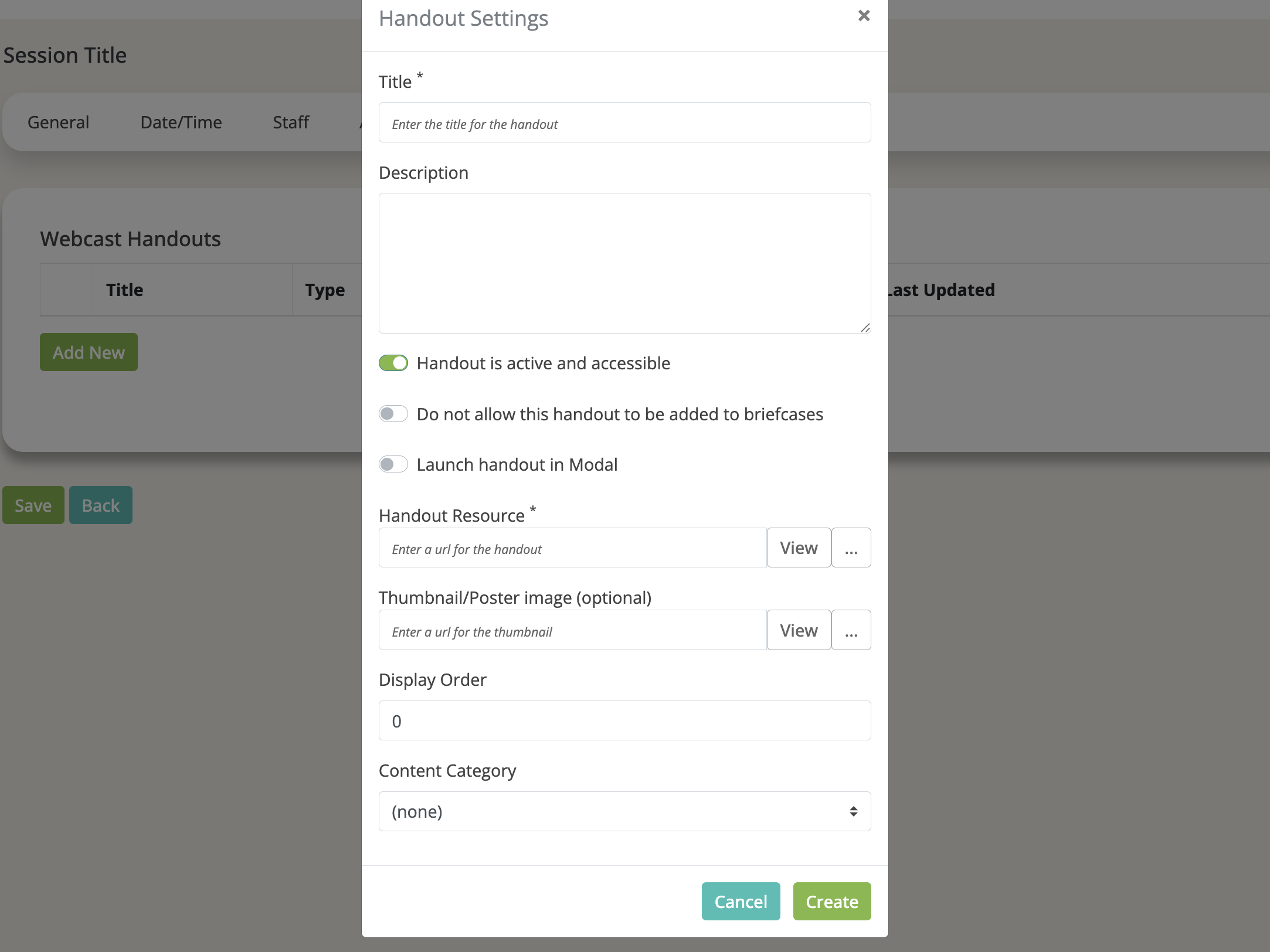
Go to the Handouts tab and click Add New. Each handout has the following settings:
| Field | Details |
| Title | The name of the resource as attendees will see it. |
| Description | A short summary of what the handout contains. |
| Handout Resource | The URL or uploaded file for the resource. |
| Thumbnail/Poster Image | Optional. A custom thumbnail for the resource. Defaults to a file type icon if left blank. |
| Display Order | Controls the order handouts appear in the list. Use increments of 10 to allow for easy reordering. |
| Content Category | Optional. Associates the handout with an account-level Content Category, useful if you are using a Resource Center. |
| Active & Accessible | Must be enabled for attendees to see and access the handout. |
| Do Not Allow Added to Briefcases | Removes the Add to Briefcase button from this handout. |
| Launch in Modal | Forces the handout to open in a modal instead of a new browser window. |
Reminder: Adding a handout here does not automatically make it visible in the session. You must also add it to a Content Feature tab (see below).
Content Tabs
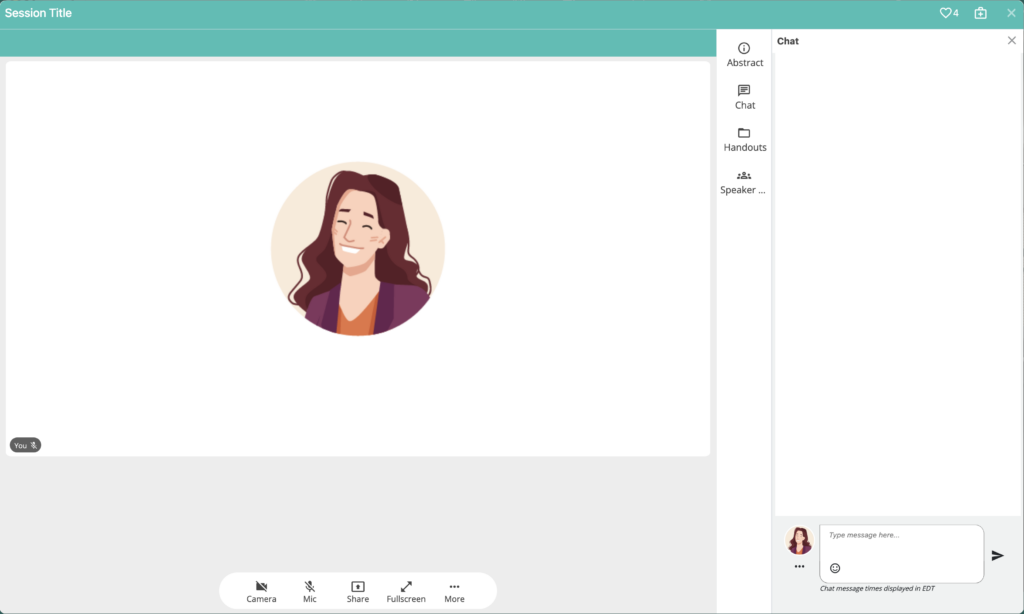
Content tabs appear as a panel alongside the video in the webcast — visible to attendees during the session. Each tab is its own content feature and can display a different type of content.
Adding a Content Tab
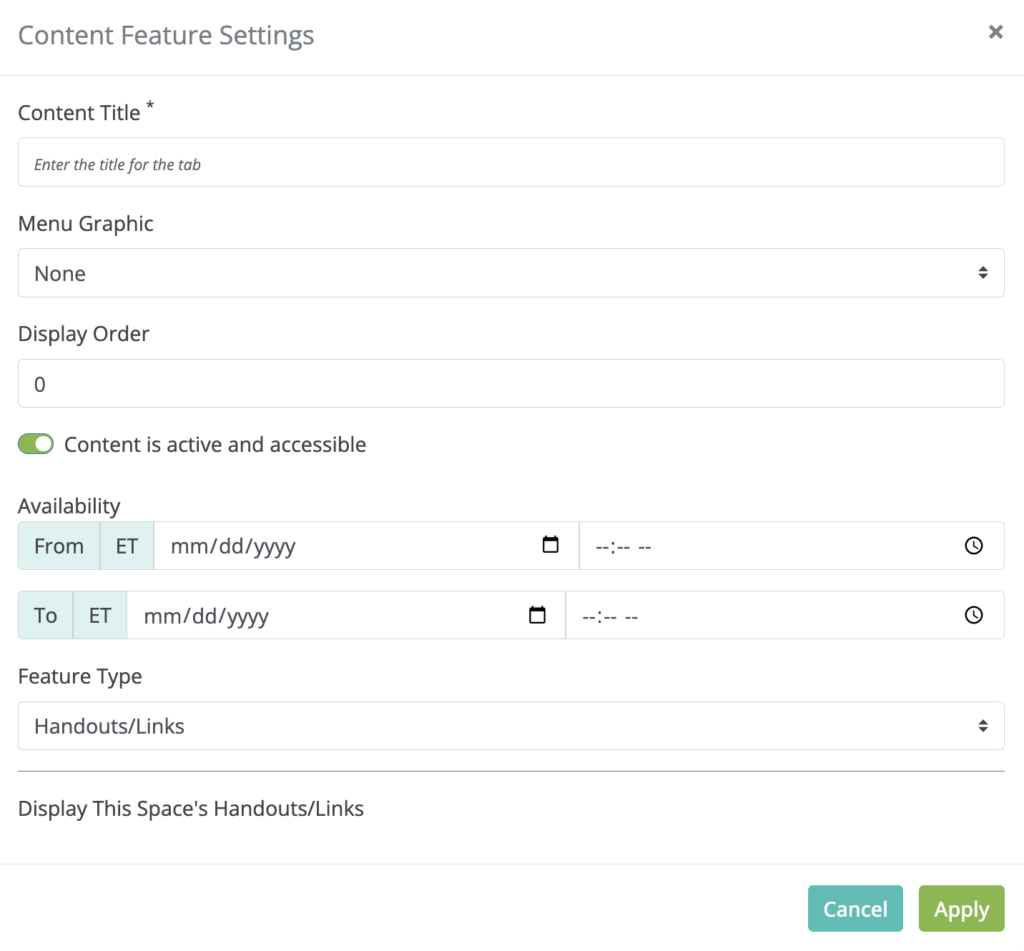
Go to the Content tab and click Add New. Each content feature has the following settings:
| Field | Details |
| Content Title | The name of the tab as it appears to attendees. |
| Menu Graphic | Optionally add an icon to the content. This is recommended and will display the tab for users. |
| Feature Type | The type of content to display (see below). |
| Display Order | Controls the order tabs appear in the panel. Use increments of 10. |
| Active & Accessible | Must be enabled for attendees to see the tab. |
| Availability | Optional date range during which the tab and its content are accessible. If left blank, the content will always be available. |
Common Feature Types
The Feature Type you select determines what appears in that tab. Options include:
- Handouts — displays the handouts you added in the Handouts tab. This is how handouts become visible to attendees in the session. Choose to show all handouts in one tab or select handouts. Session slides are a great handout to include in your webcasts.
- Chat — adds a live text chat box for attendees to interact during the session.
- Speaker List — displays the speaker list for the webcast. (added as webcast staff)
- Webcast Abstract — displays the webcast abstract.
- Polls — allows polls to be created and pushed to attendees during the session. (ChatiConnect only).
- HTML Content— add any text and imagery you need to share with users.
- External Web Page— displays a webpage directly in the tab panel. Typically, it is best to create web page links as handouts vs using this feature.
Tip: A common setup for a Chati Connect or Video File session is to include tabs for Chat, Handouts, and Speakers. This gives attendees everything they need without overwhelming the panel.
Recommended Setup Checklist
If you are adding handouts and content to a webcast, work through these steps in order:
- Confirm your webcast is using the Webcast with Vertical Content template in Webcast General Settings.
- Go to the Handouts tab and add your files or links.
- Go to the Content tab and add a content feature tab for each type of content you want to display.
- For handouts to appear, add a Handouts feature type tab and confirm it is active.
- Set your preferred Display Order for both handouts and content tabs.
- If you are using polling in a ChatiConnect session, confirm that all moderators have permission to create polls within the platform via staff webcast roles. Also, add your polling questions to the session ahead of time. To do this, you will need to enter the webcast directly and input the questions in advance.
- Preview the session to confirm everything appears as expected.